Author: Unsubscribe Guide Team

  • How to Cancel Audible (Step-by-Step)

    Audible is a paid audiobook subscription that renews automatically. If you no longer want your membership or want to avoid future charges, this guide shows exactly how to cancel Audible, depending on how you originally subscribed.

    Important: You must cancel Audible through the same platform you used to subscribe (website, iPhone, or Android).

    How to Cancel Audible on the Website
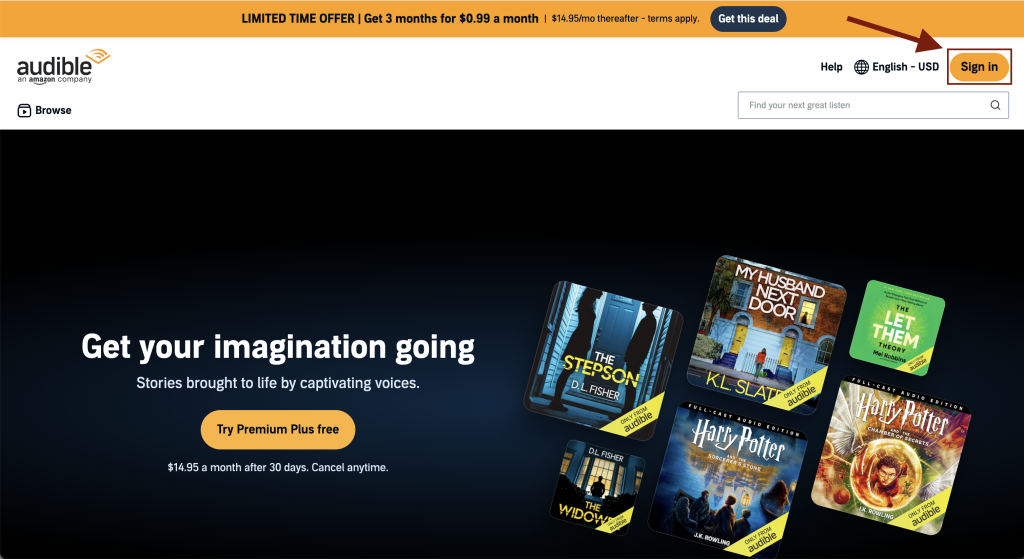
    Audible homepage showing the Sign In button in the top navigation
    Step 1: Go to the Audible website and click Sign In.
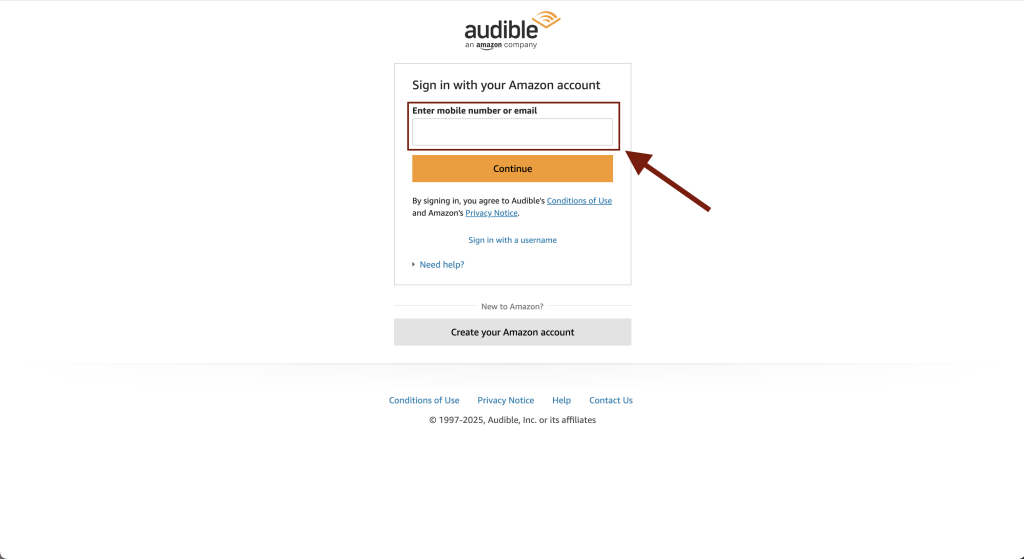
    Audible sign-in page prompting users to log in with an Amazon account
    Step 2: Log in using the Amazon account you used to sign up for Audible.
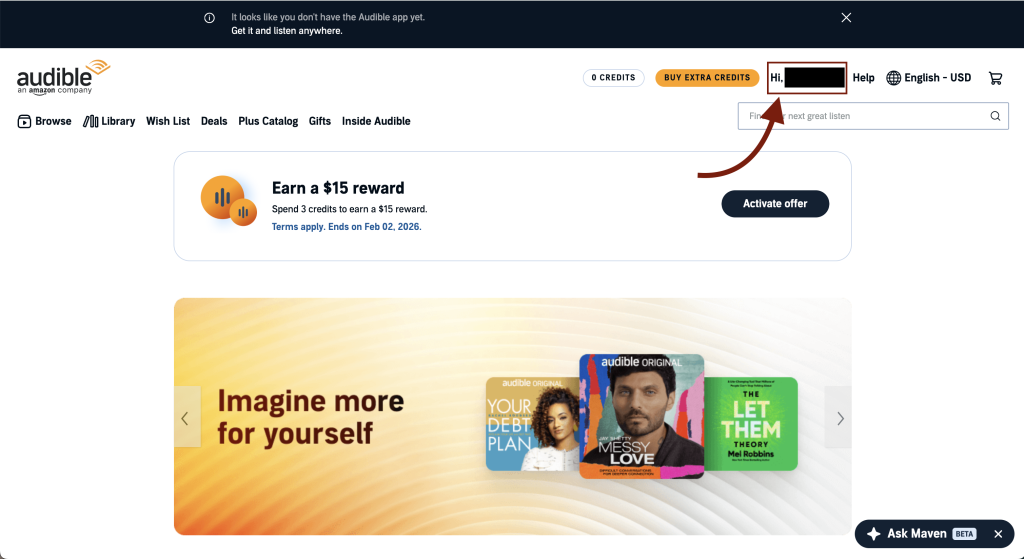
    Audible account page displaying the Hi, username menu at the top
    Step 3: Click Hi, [Your Name] at the top of the Audible page.
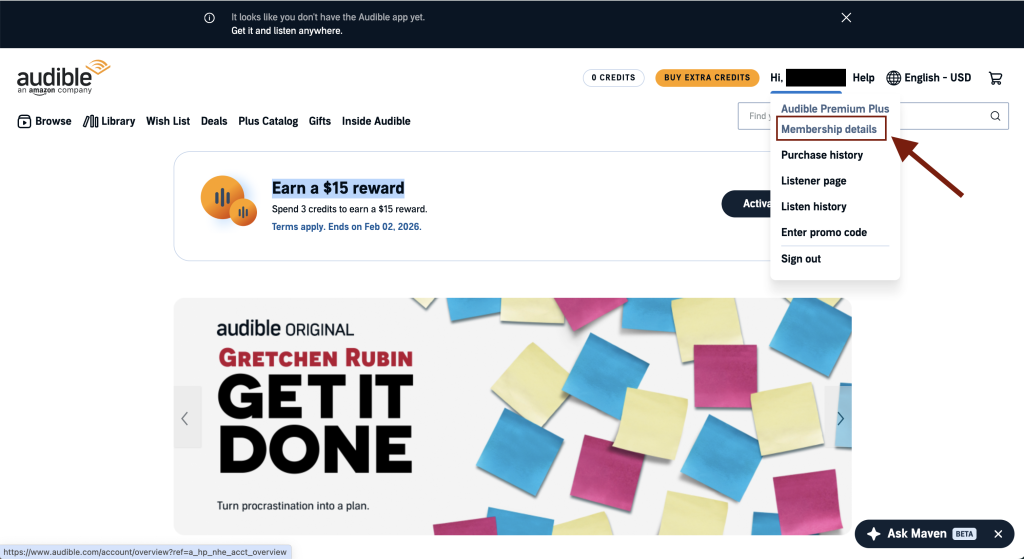
    Audible account dropdown menu showing the Membership details option
    Step 4: Select Membership details from the dropdown menu.
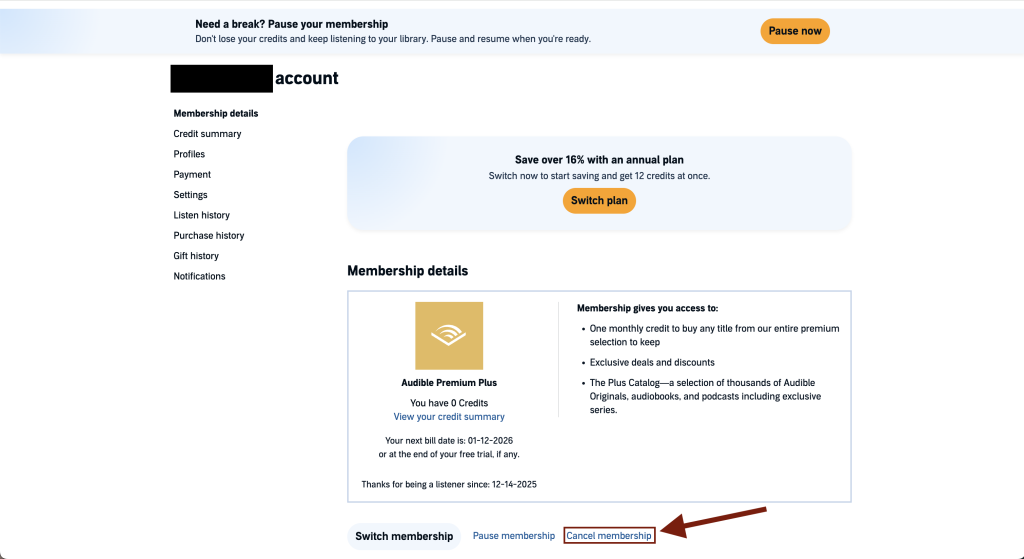
    Audible membership details page showing the Cancel membership option
    Step 5: On the Membership details page, click Cancel membership.
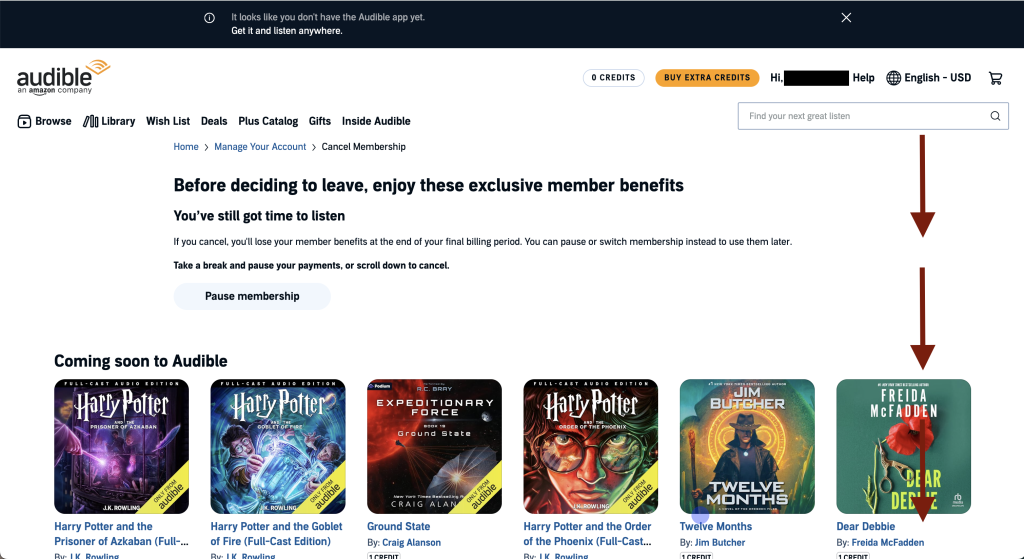
    Audible page offering the option to pause membership after selecting cancel
    Step 6: When prompted to pause your membership, scroll to the bottom of the page.
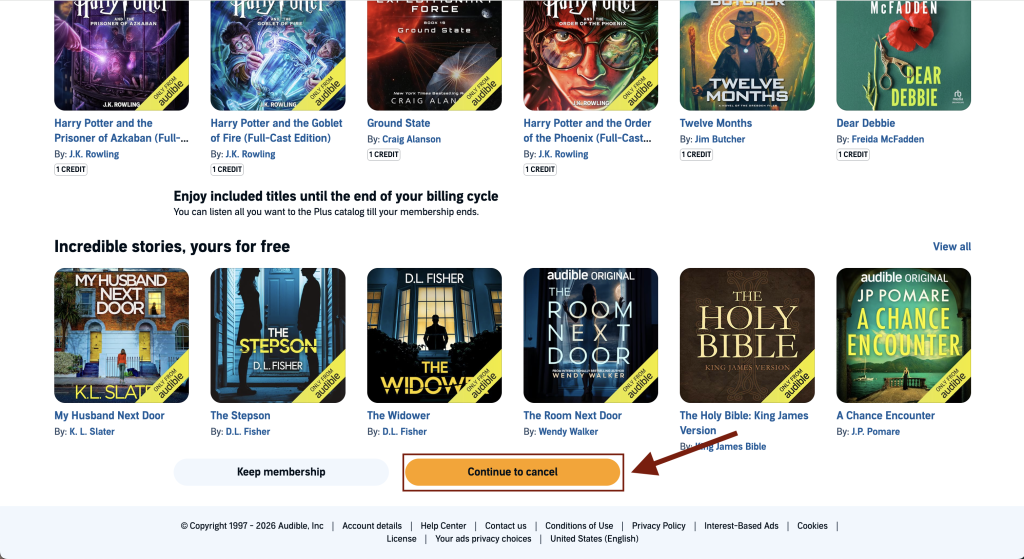
    Audible cancellation page showing the Continue to cancel button at the bottom
    Step 7: Click Continue to cancel to proceed.
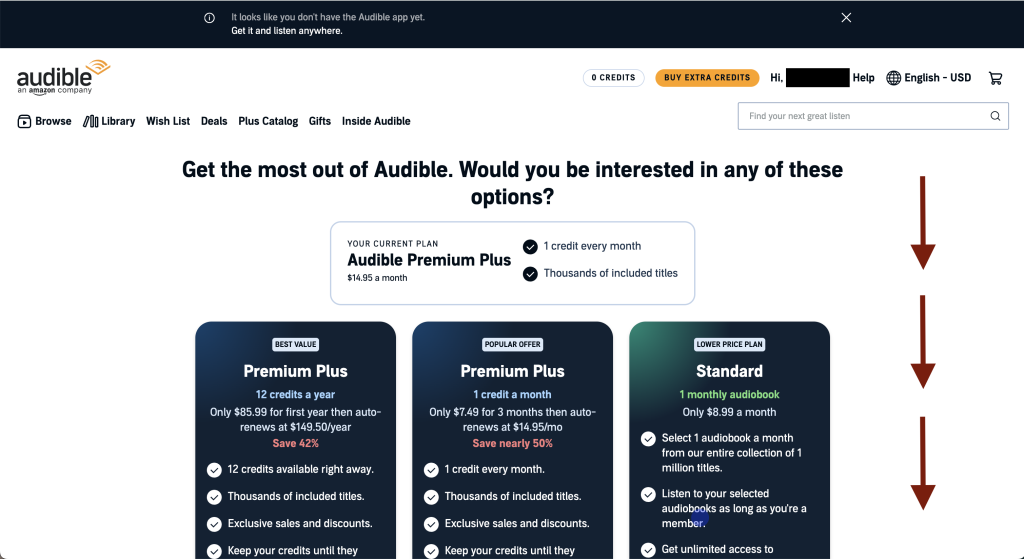
    Audible page displaying alternative subscription plans during cancellation
    Step 8: Ignore the plan switch offer and scroll down the page.
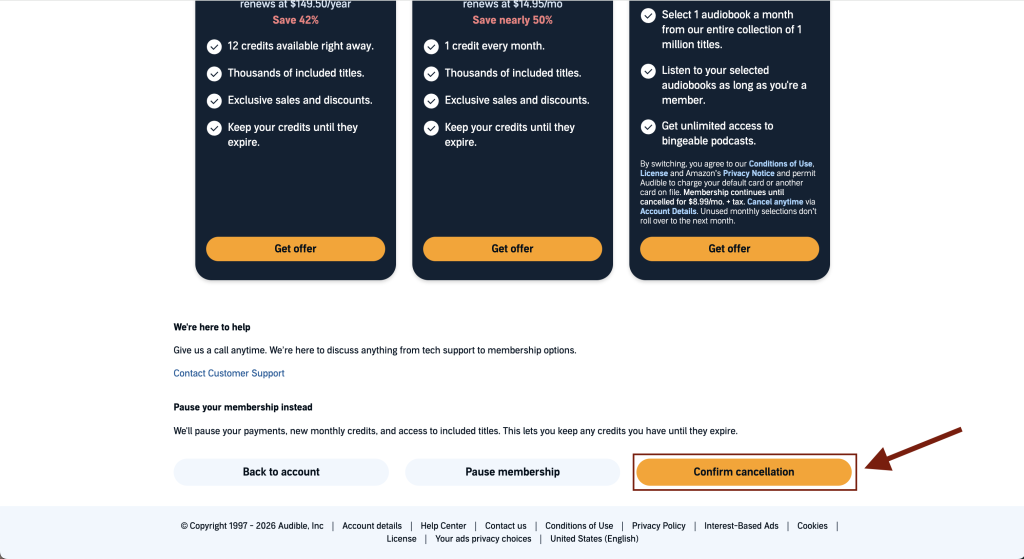
    Audible cancellation confirmation page with the Confirm cancellation option
    Step 9: Click Confirm Cancellation to continue.
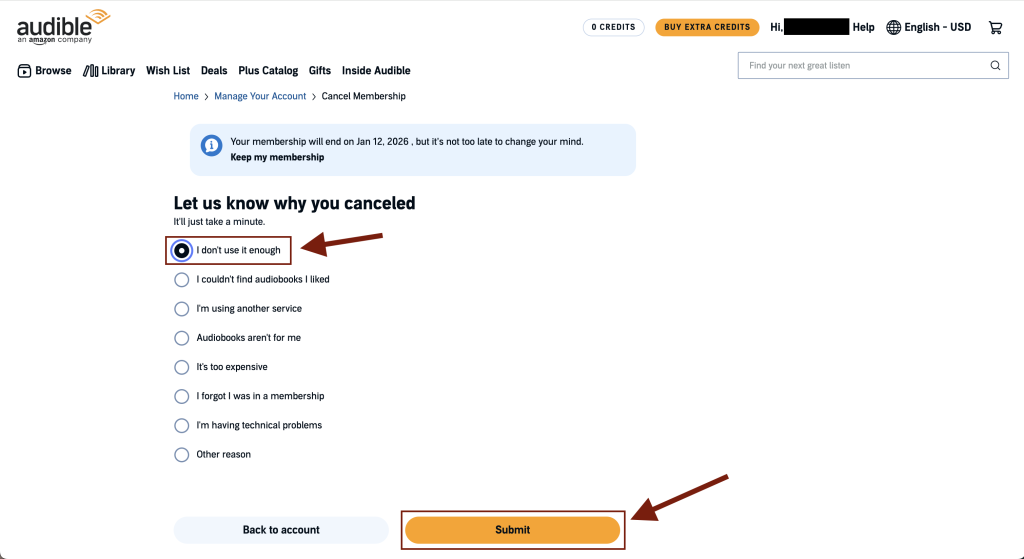
    Audible cancellation page showing a list of reasons and a Submit button
    Step 10: Select a cancellation reason and click Submit to finish canceling Audible.

    How to Cancel Audible on iPhone or iPad

    1. Open Settings.
    2. Tap your Apple ID.
    3. Tap Subscriptions.
    4. Select Audible.
    5. Tap Cancel Subscription.

    How to Cancel Spotify Premium on Android

    1. Open the Google Play Store.
    2. Tap your profile icon.
    3. Tap Payments & subscriptions.
    4. Tap Subscriptions.
    5. Select Audible.
    6. Tap Cancel subscription.
  • How to Cancel Spotify Premium (Step-by-Step)

    Spotify Premium is a paid subscription that renews automatically. If you no longer want Premium features or want to avoid future charges, this guide shows exactly how to cancel Spotify Premium, depending on how you originally subscribed.

    Important: You must cancel through the same platform you used to subscribe (website, iPhone, or Android).

    How to Cancel Spotify Premium on the Website

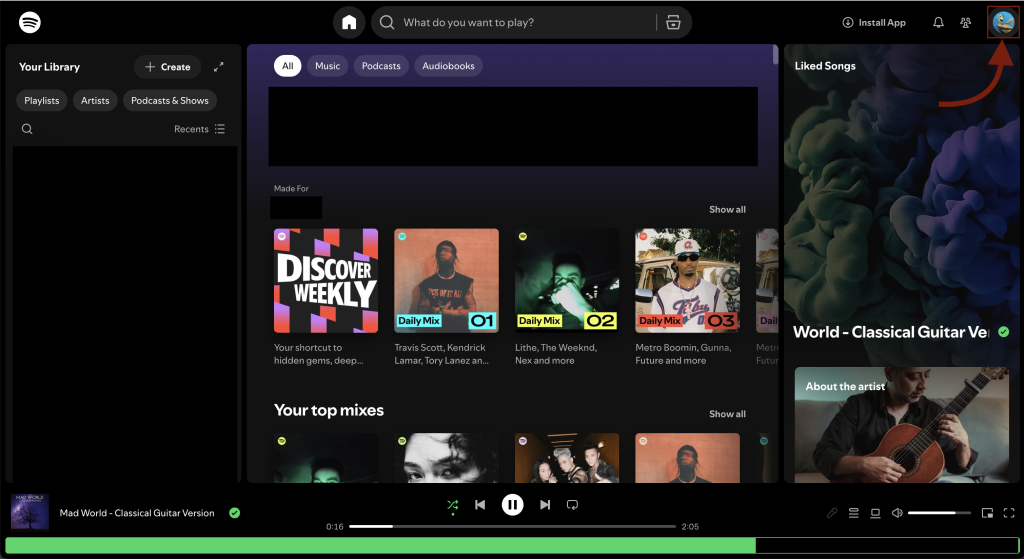
    Spotify account home page showing the user profile icon in the top right corner
    Step 1: Log in to your Spotify account and click your profile icon in the top-right corner.
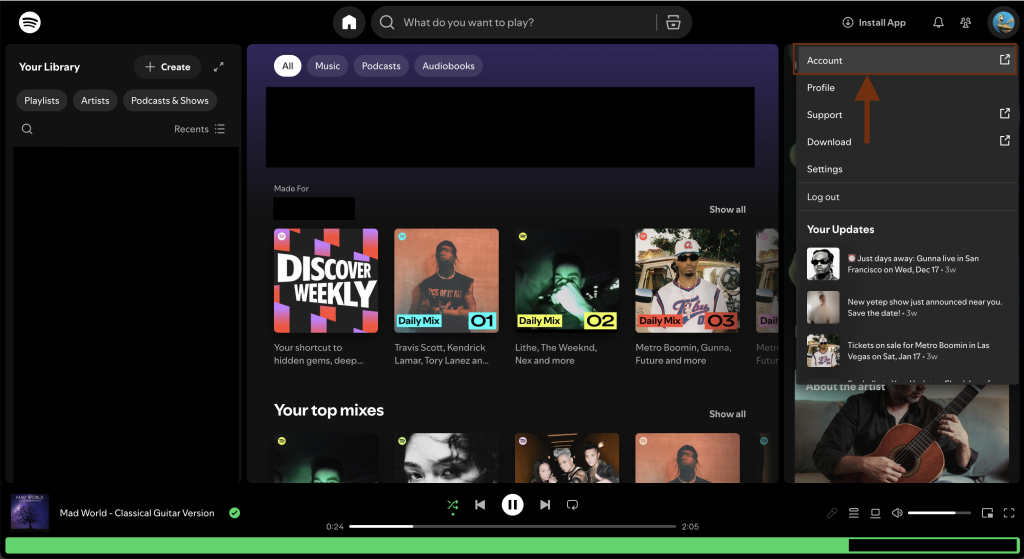
    Spotify profile dropdown menu opened after clicking the profile icon
    Step 2: Select Account from the dropdown menu.
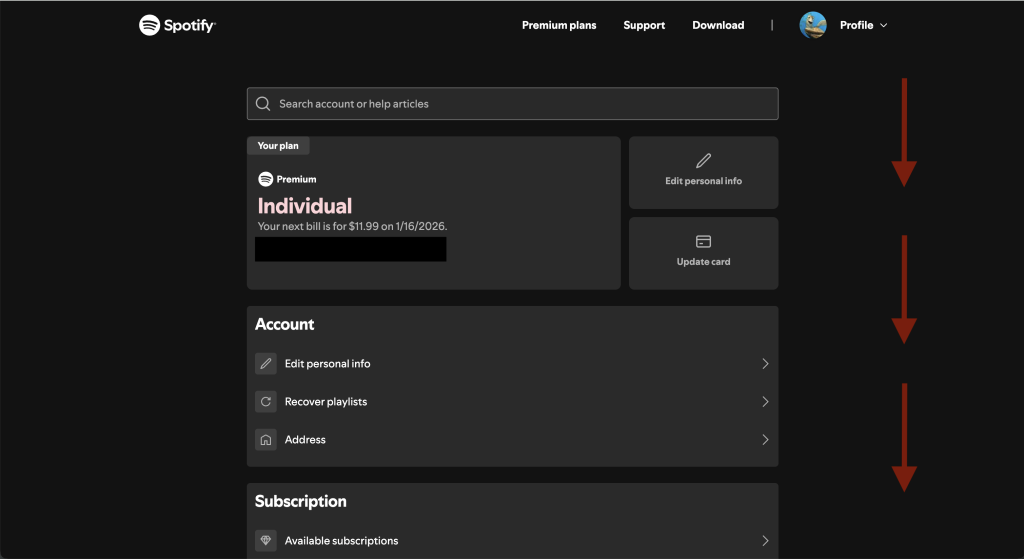
    Spotify account page displayed after selecting Account from the profile menu
    Step 3: You’ll be redirected to your account page. Scroll down to the Subscription section.
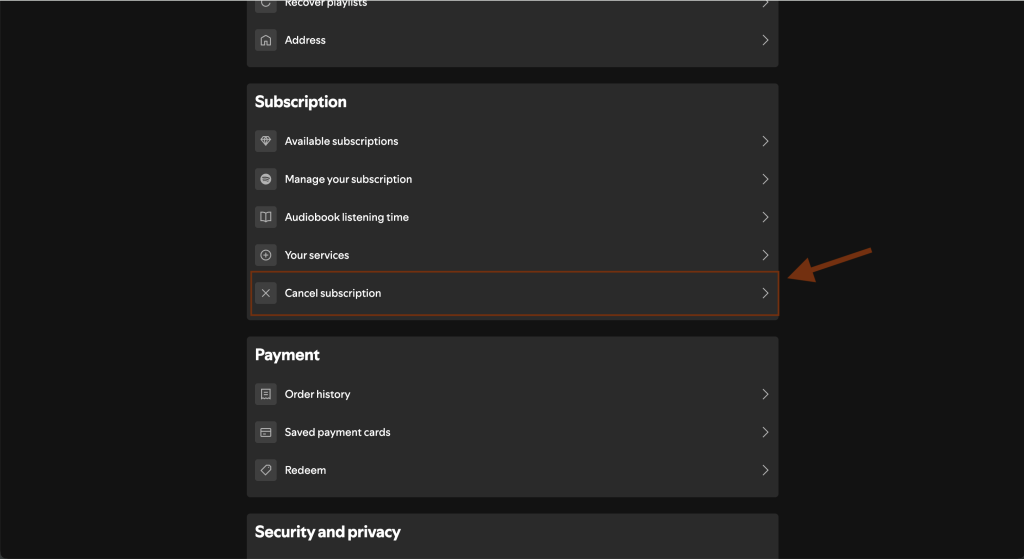
    Spotify subscription page showing the Cancel Subscription option
    Step 4: Click Cancel Subscription under your current plan.
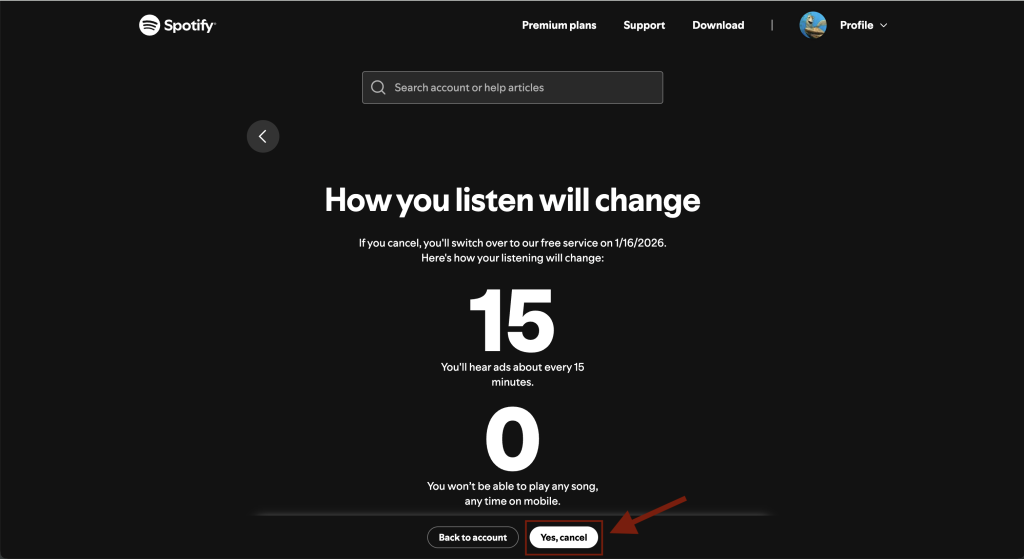
    Spotify cancellation confirmation screen with the Yes, Cancel button
    Step 5: Confirm by clicking Yes, cancel to stop auto-renewal.

    How to Cancel Spotify Premium on iPhone or iPad

    1. Open Settings.
    2. Tap your Apple ID.
    3. Tap Subscriptions.
    4. Select Spotify.
    5. Tap Cancel Subscription.

    How to Cancel Spotify Premium on Android

    1. Open the Google Play Store.
    2. Tap your profile icon.
    3. Tap Payments & subscriptions.
    4. Select Spotify.
    5. Tap Cancel subscription.
  • How to Cancel Amazon Prime (Step-by-Step)

    Amazon Prime is a paid membership that renews automatically. If you no longer want the benefits or want to avoid future charges, this guide explains exactly how to cancel Amazon Prime and stop auto-renewal, based on how you subscribed.

    Important: You must cancel through the same platform you used to subscribe (website, iPhone, or Android).

    How to Cancel Amazon Prime on the Website

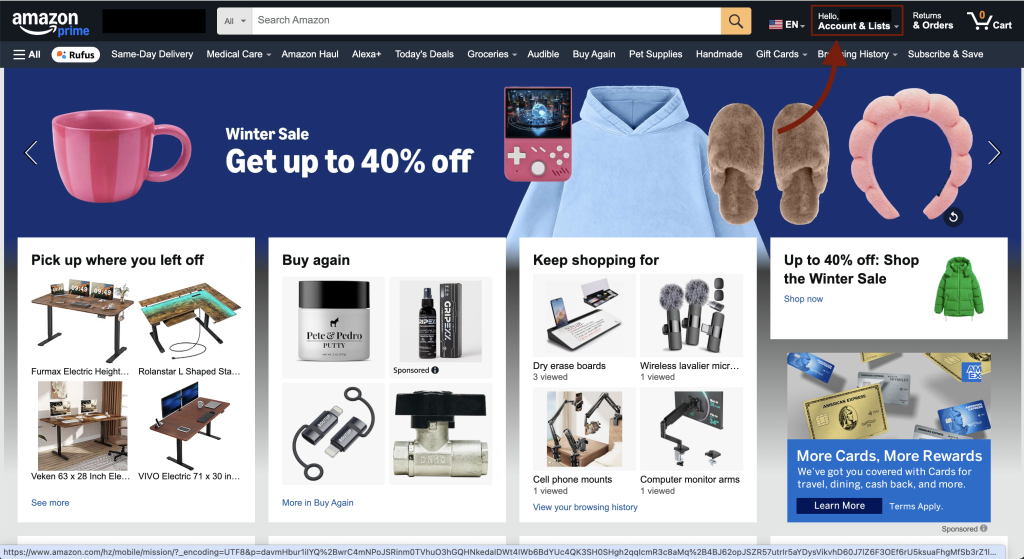
    Amazon account menu showing the Account & Lists option after logging in
    Step 1: Log in to your Amazon account and hover over Account & Lists in the top navigation.
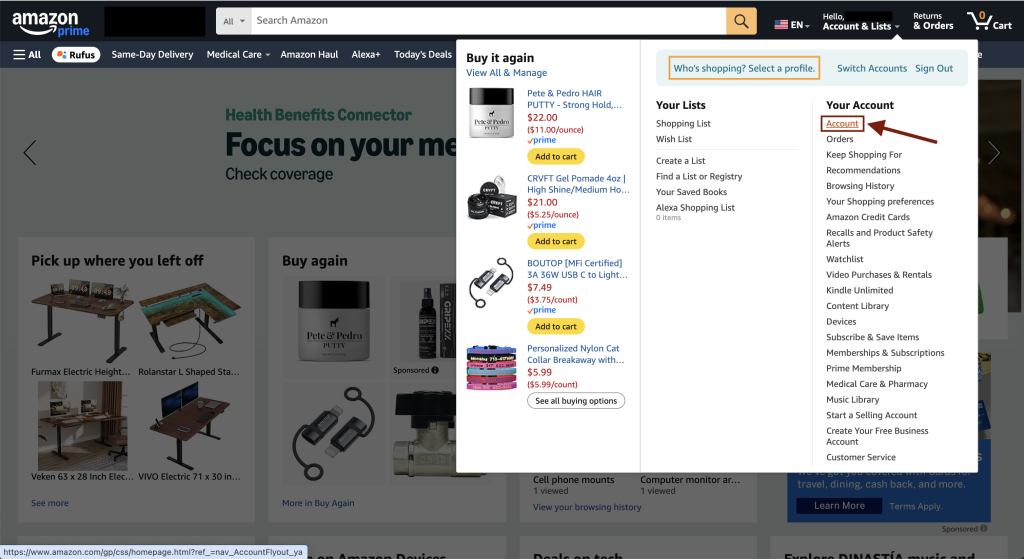
    Amazon account list with the Account option selected
    Step 2: Click Account to open your account dashboard.
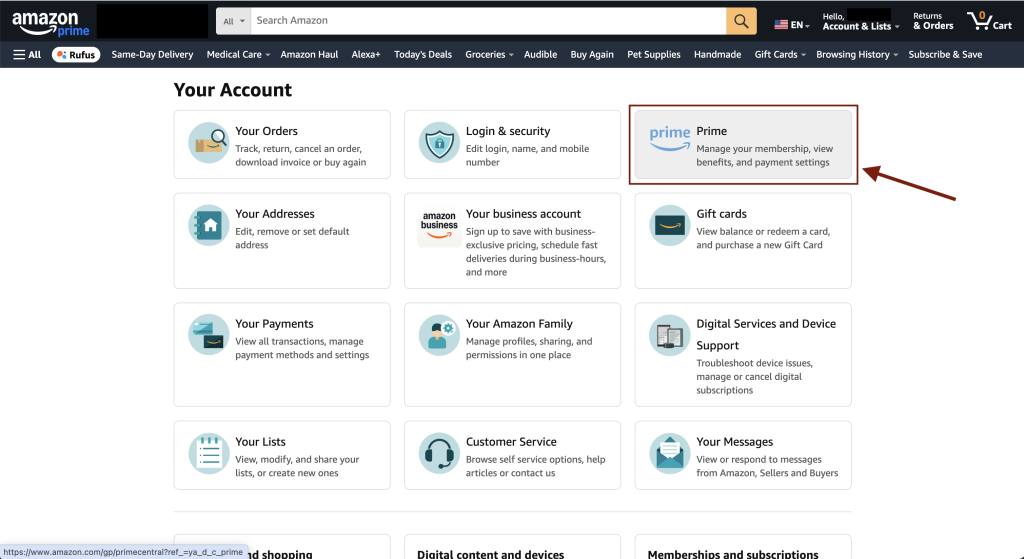
    Amazon Prime membership tile displayed on the account page
    Step 3: Select the Prime option (Prime membership tile).
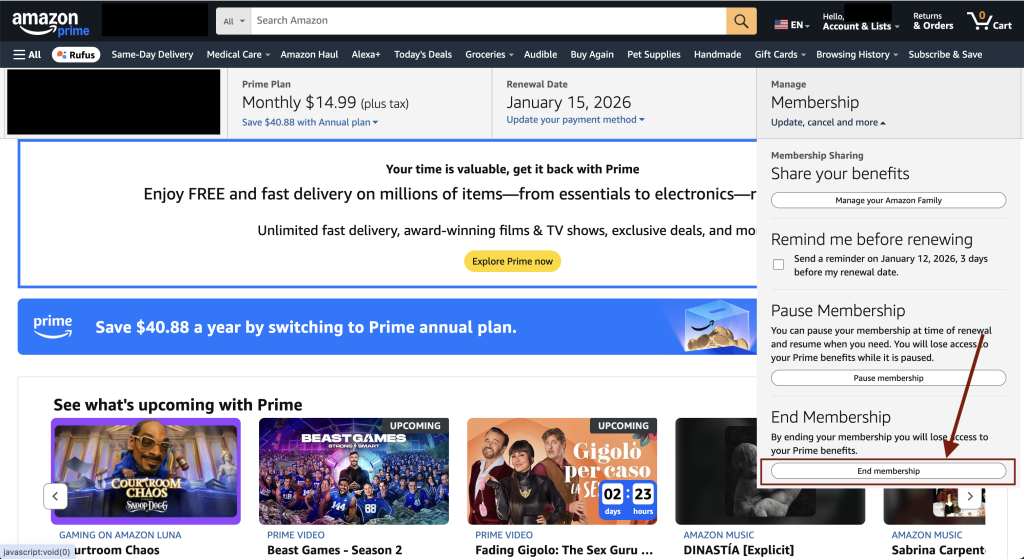
    Amazon Prime membership page showing the End Membership option
    Step 4: Click End Membership on the Amazon Prime page.
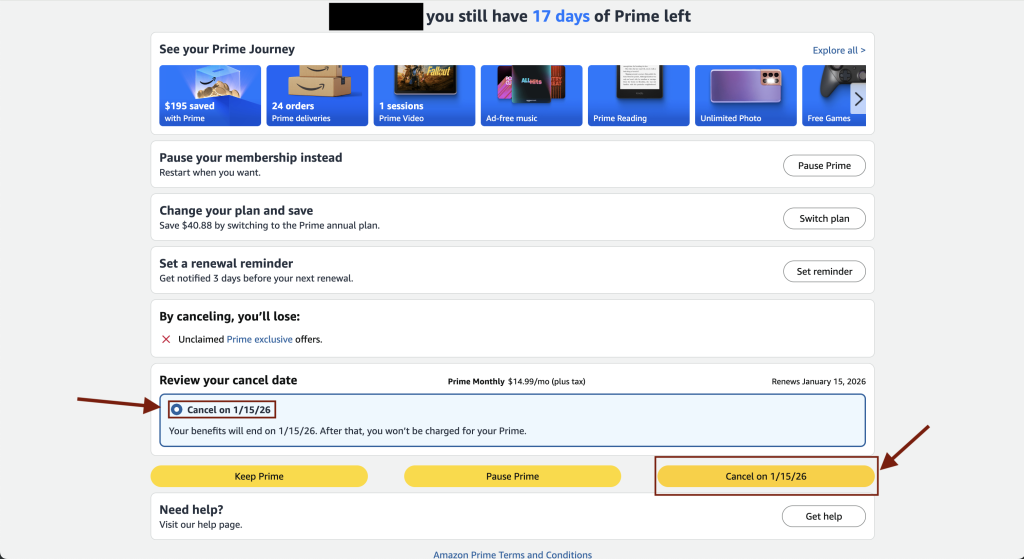
    Amazon Prime cancellation screen with the Review your cancel date option selected
    Step 5: Choose Review your cancel date, then confirm by clicking Cancel to stop auto-renewal.

    How to Cancel Amazon Prime on iPhone or iPad

    1. Open Settings.
    2. Tap your Apple ID.
    3. Tap Subscriptions.
    4. Select Amazon Prime.
    5. Tap Cancel Subscription.

    How to Cancel Amazon Prime on Android

    1. Open the Google Play Store.
    2. Tap your profile icon.
    3. Tap Payments & subscriptions.
    4. Select Amazon Prime.
    5. Tap Cancel subscription.
  • How to Cancel LeetCode Premium (Step-by-Step)

    LeetCode Premium is a paid subscription that renews automatically. If you no longer need it or want to avoid future charges, this guide shows exactly how to cancel LeetCode Premium, depending on how you originally subscribed.

    Important: You must cancel through the same platform you used to subscribe (website, iPhone, or Android).

    How to Cancel LeetCode Premium on the Website

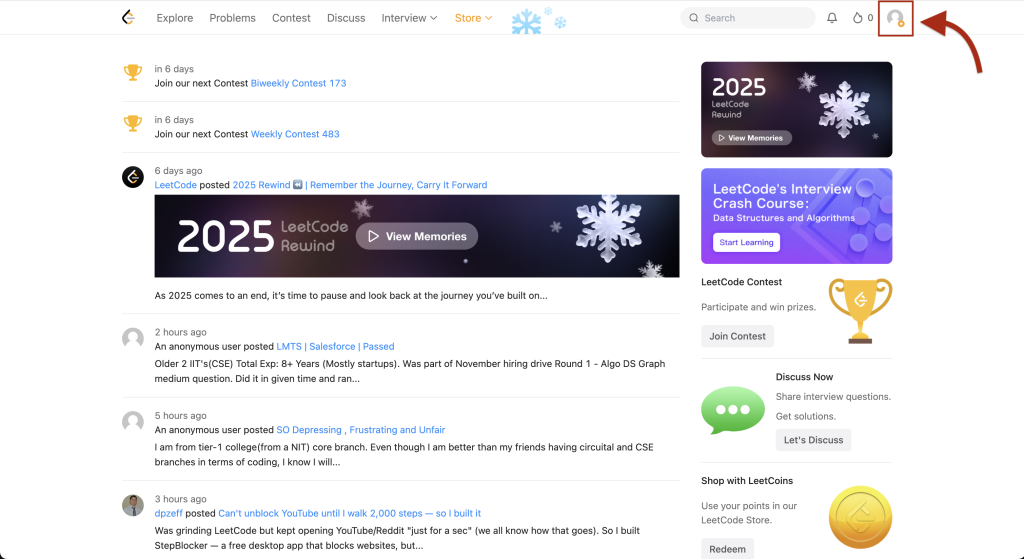
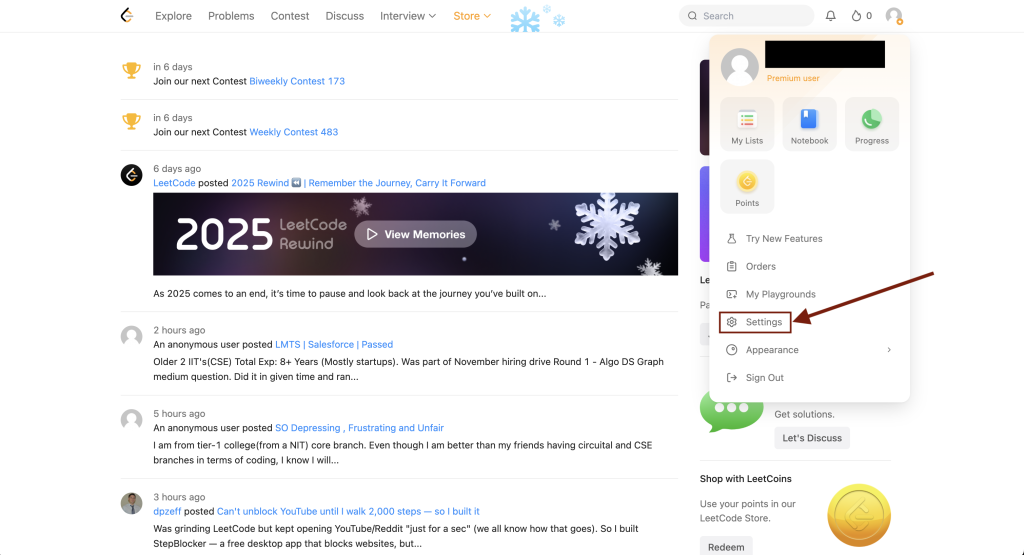
    LeetCode home page opened opened after logging into the account
    Step 1: Log in to your LeetCode account and click your profile icon.
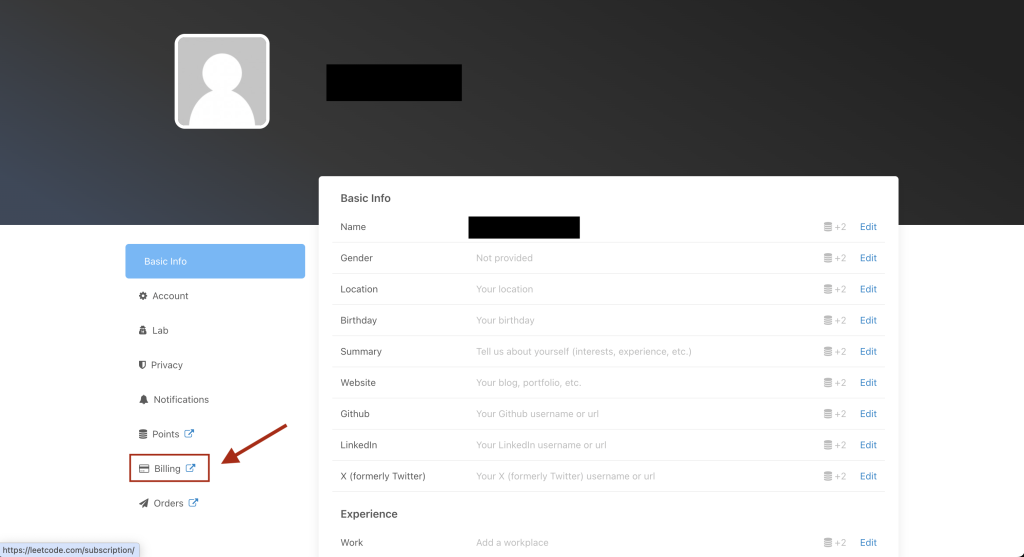
    LeetCode account settings page accessed from the profile menu
    Step 2: Open the Settings menu from your profile.
    LeetCode billing option shown after clicked on profile icon.
    Step 3: Go to the Billing section in account settings.
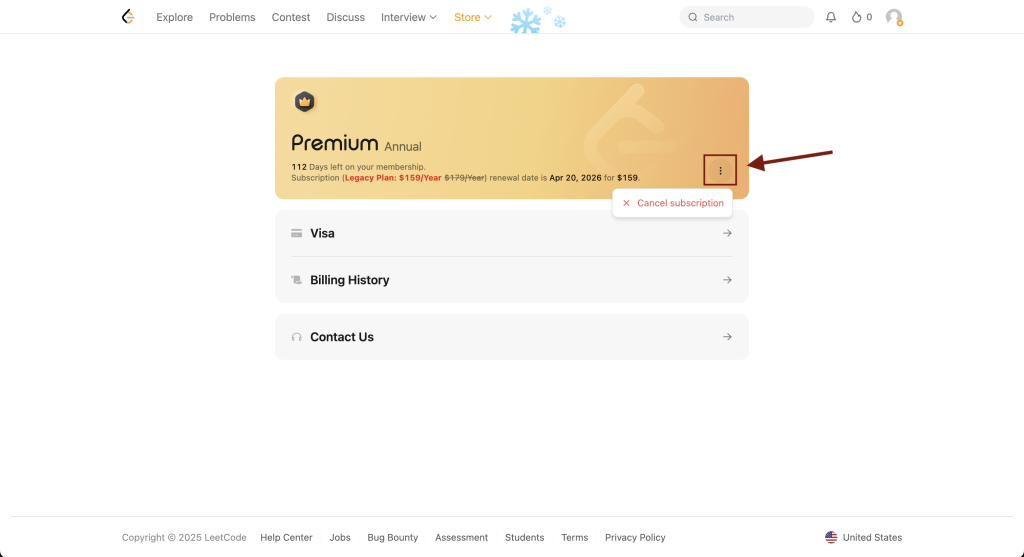
    Cancel LeetCode Premium option shown under the three dot menu
    Step 4: Click the three dots to reveal the cancel subscription option.

    How to Cancel LeetCode Premium on iPhone or iPad

    1. Open Settings.
    2. Tap your Apple ID.
    3. Tap Subscriptions.
    4. Select LeetCode.
    5. Tap Cancel Subscription.

    How to Cancel LeetCode Premium on Android

    1. Open the Google Play Store.
    2. Tap your profile icon.
    3. Tap Payments & subscriptions.
    4. Select LeetCode.
    5. Tap Cancel subscription.